Network monitoring with pfSense, Part 1- Forward logs to Splunk via Cribl
Introduction
pfSense is a powerhouse for network management, offering robust firewall capabilities, intrusion detection with Suricata, and advanced DNS filtering through pfBlockerNG. Its open-source nature makes it a favorite for home labs and small businesses, but to truly unlock its potential, you need visibility into its logs. In this guide, we’ll walk through forwarding pfSense logs—specifically firewall filterlog, pfBlockerNG DNSBL, and Suricata EVE logs—to an external collector using Cribl Stream, then into Splunk for analysis and visualization. This is part one of a series, focusing on the setup and configuration.
What you’ll set up
- Forward pfSense system and firewall (filterlog) events to a remote syslog receiver (Cribl)
- Forward pfBlockerNG DNSBL and Suricata EVE logs using syslog‑ng file sources
- Preserve timestamps with RFC 3339 (millisecond precision) and avoid message truncation
Prerequisites
- A running pfSense instance (version 2.7.0 or later recommended for stability).
- Cribl Stream (cloud or on-premises, version 4.0 or higher).
- A Splunk instance (Enterprise or Cloud, with HTTP Event Collector enabled).
- Basic familiarity with pfSense’s web interface.
Configure pfSense for Log Export
In the pfsense menu, navigate to.
Status -> System Logs -> Settings
Set the Log Format to RFC 3339 with millisecond precision.
Enable “Send log messages to remote syslog server,” add your Cribl/collector host and port, and select the log categories to forward (System, Firewall, DHCP, etc.). The firewall filterlog is under Firewall.
Install syslog-ng package
Go to System -> Package Manager -> Available Packages, search for syslog-ng, and install the package.

Configure syslog-ng to forward log files
In order to configure syslog-ng to forward local log files from pfSense, go to Services -> Syslog-ng.
- Under Interface selection, use the loopback interface (syslog-ng is reading local files, not listening for remote senders).
Next, go to the Advanced tab and add the following objects. The UI maps directly to syslog-ng syntax; the examples below show the equivalent configuration you can mirror in the “Object Parameters” field.
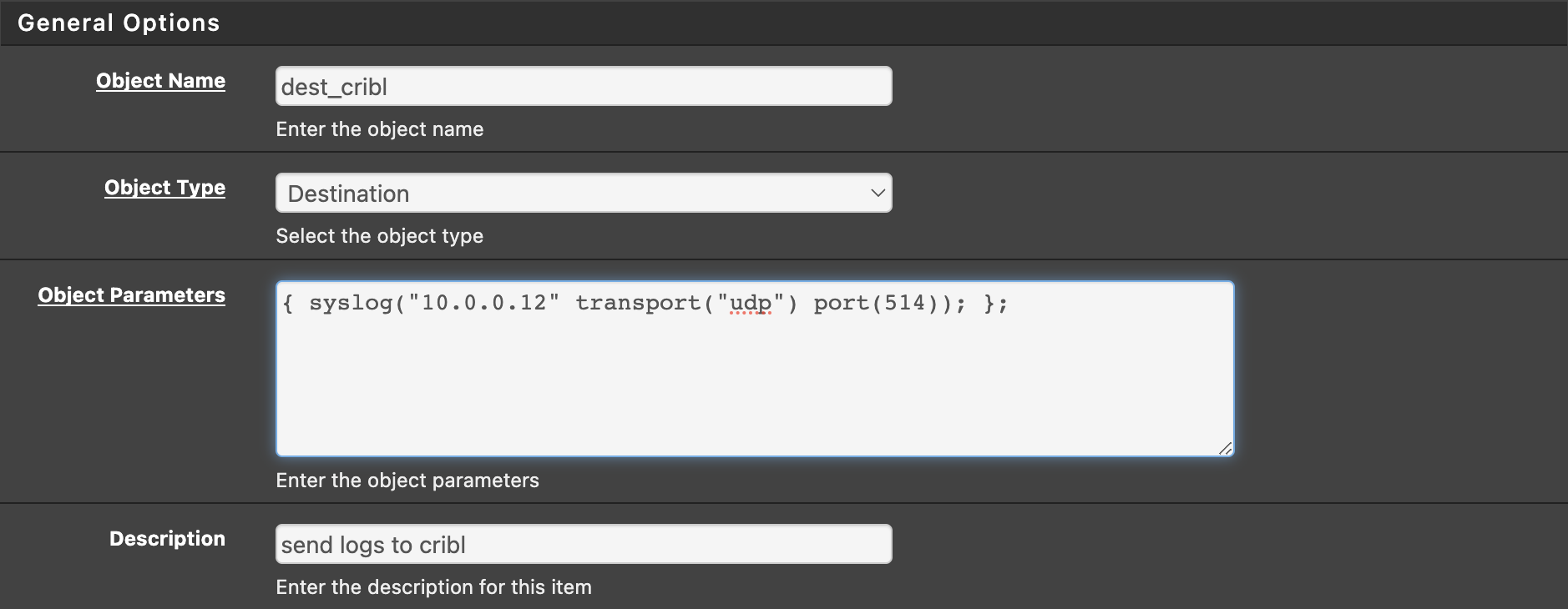
Create a Destination called dest_cribl (type: Destination):
1 2 3 | destination dest_cribl { network("10.0.0.50" transport("tcp") port(514) log-msg-size(65536)); }; |
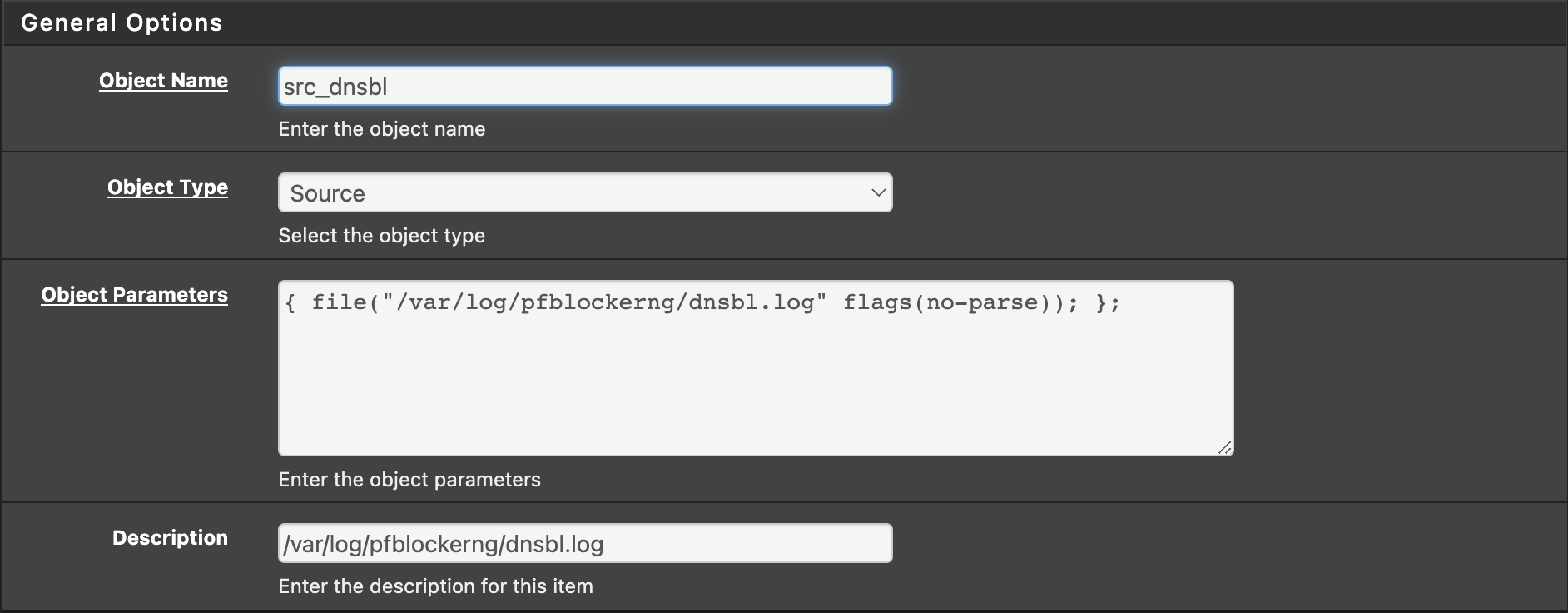
Now create Sources for the files you want to forward. For example, a pfBlockerNG DNSBL log and Suricata EVE logs:
1 2 3 4 5 6 7 | source src_dnsbl { file("/var/log/pfblockerng/dnsbl.log" follow-freq(1) flags(no-parse)); }; source src_suricata { file("/var/log/suricata/*/eve.json" program-override("suricata") flags(no-parse)); }; |
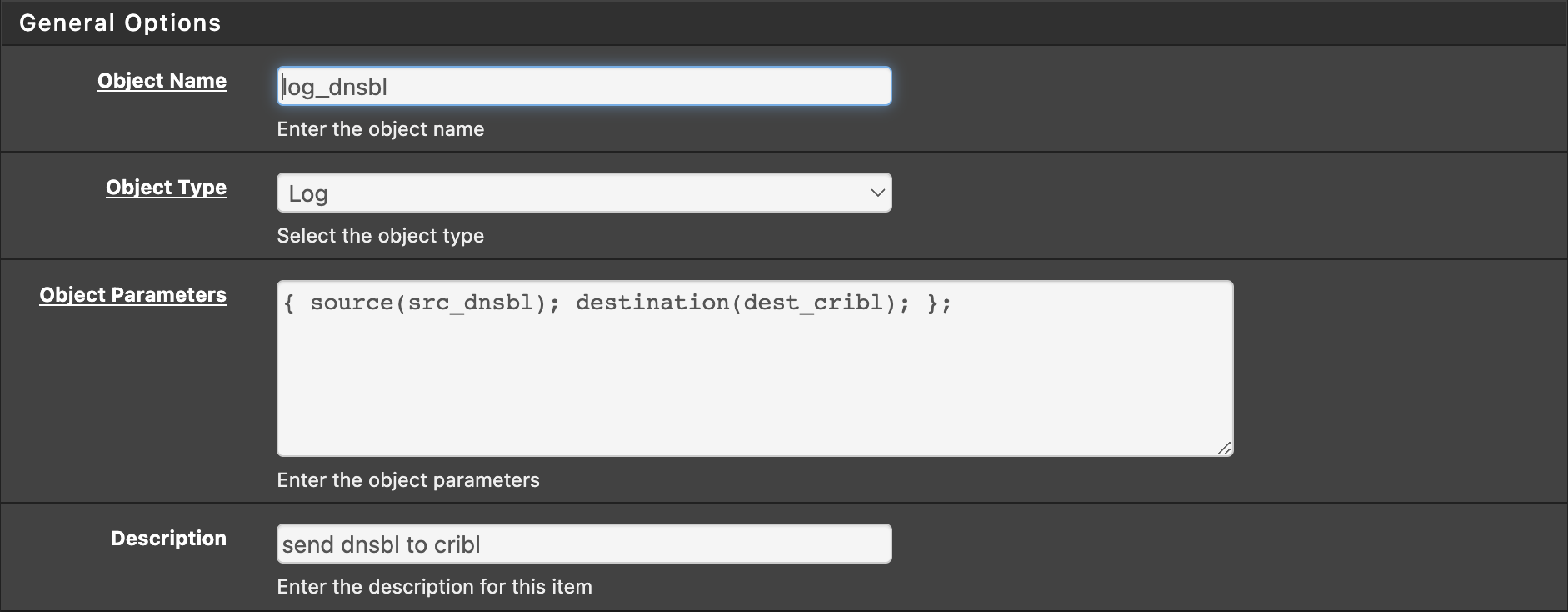
Finally, create Log routes that connect each Source to the Destination:
1 2 | log { source(src_dnsbl); destination(dest_cribl); }; log { source(src_suricata); destination(dest_cribl); }; |
Avoiding truncated messages
If you notice messages being cut off, raise the maximum message size. The example destination above uses log-msg-size(65536). You can also set a global option, for example:
1 | options { log-msg-size(65536); }; |
More background on syslog message size limits: How to increase maximum size of syslog message
Notes and troubleshooting
- Suricata EVE logs are best forwarded via syslog-ng file sources (as shown above); sending EVE directly via pfSense’s remote syslog can be unreliable in some versions. See: Suricata eve.json to syslog doesn’t work
- To verify outbound forwarding from pfSense, run:
tcpdump -ni any host <cribl_host> and port 514 - In Cribl, confirm events are arriving, then route them to Splunk via HEC or syslog as preferred.
What’s next
In Part 2, we’ll enrich and parse these events in Cribl and build useful Splunk dashboards for pfBlockerNG and Suricata.